User Guide
Everything you need to start tracking your mortgage, HELOC, investments, and tax deductions. Each tool works standalone or together for full Smith Maneuver execution.
1Getting Started
Finance Nerd is a 100% client-side app. Your data is stored in a JSON file on your computer and never leaves your browser. There are no accounts, no cloud storage, and no tracking.
First-time setup
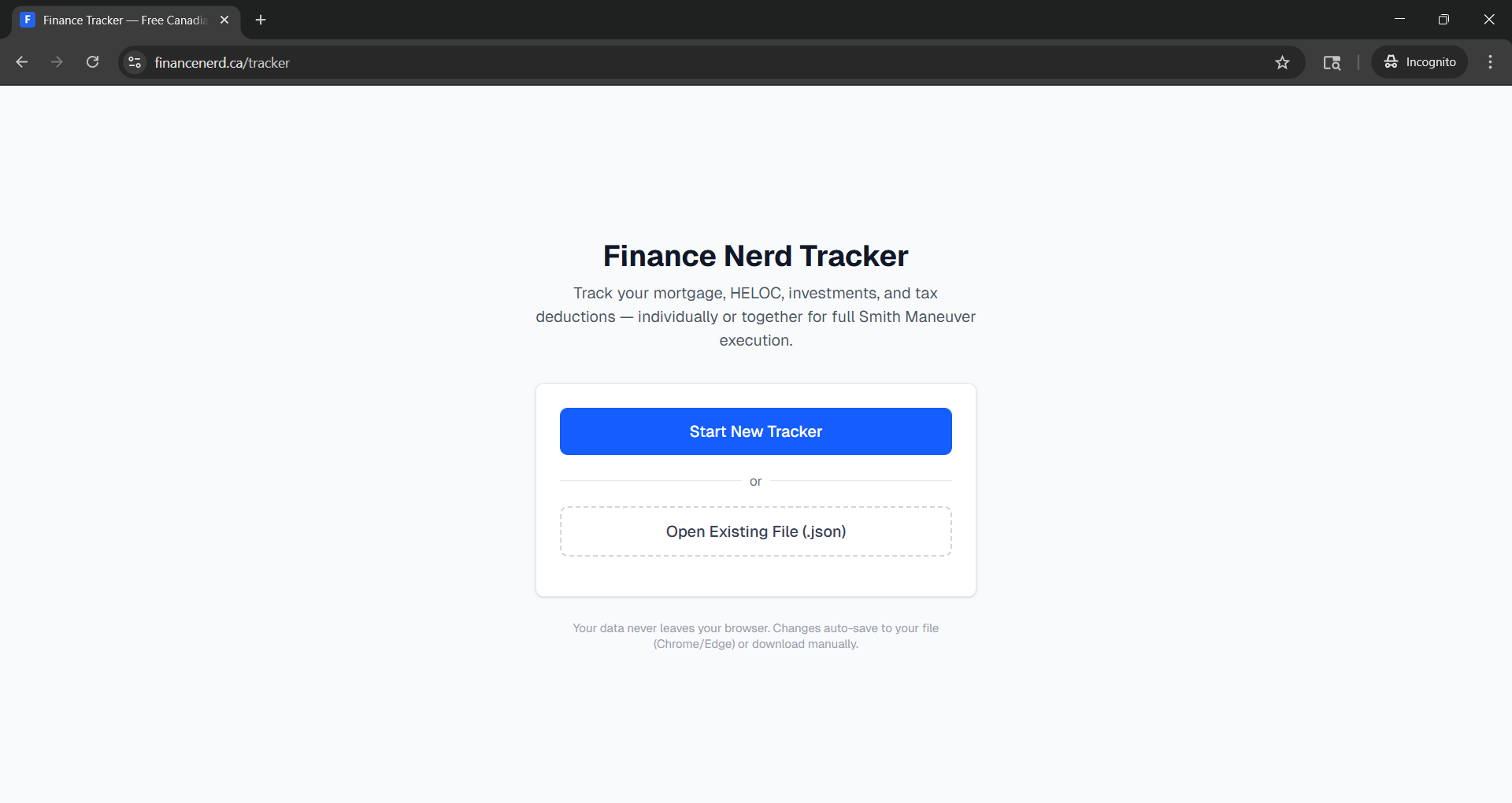
- Go to the Tracker page.
- Click Start New Tracker to create a fresh session.
- Choose which tools you want to use (you can change this later in Setup).
- Complete the Setup Wizard with your financial details.
Returning users
When you return, the app remembers the last file you used. Click Open File to Continue to pick up where you left off, or use Open Existing File to load a different JSON file.
Tip: On Chrome and Edge, the app can auto-save directly to your file. Click Save As in the top bar to link a file — every change is saved automatically after that. On other browsers, use the Download button to manually save your data.
2Setup Wizard
The Setup Wizard walks you through configuring each tool. You can re-visit it anytime from the Setup link in the navigation bar.
Tool selection
Start by choosing which tools to enable. You can use any combination:
- Mortgage Tracker — amortization, payments, renewals, prepayments
- Investment Loan (HELOC) Tracker — draws, interest payments, room tracking
- Investment Tracker — buys, sells, dividends, ACB calculation
- Tax Tracker — deductible interest, tax savings, refund deployment
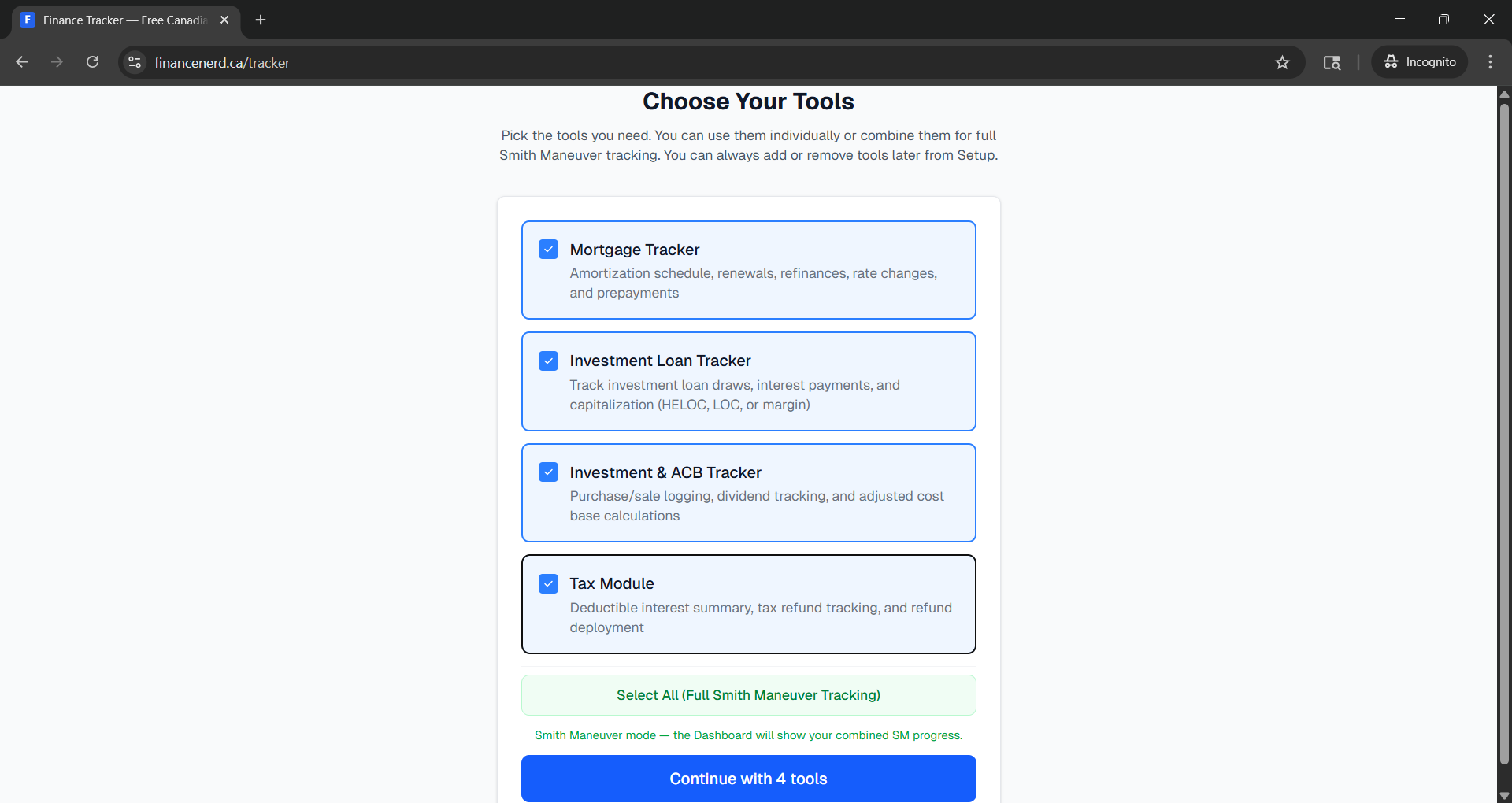
Tip: Enable all four tools for full Smith Maneuver tracking. The Dashboard view appears automatically when two or more tools are enabled.
Mortgage setup
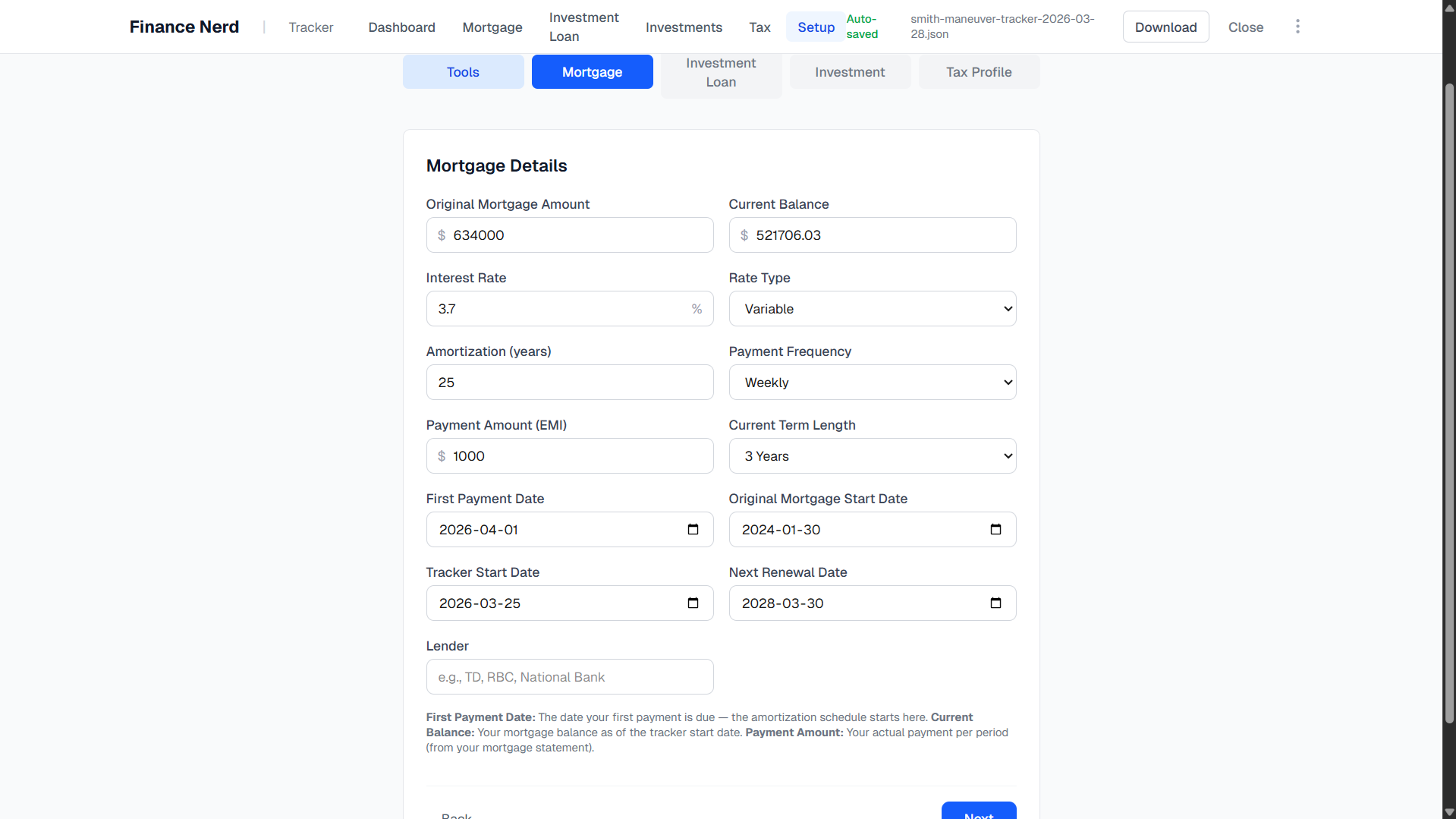
Enter your mortgage details:
- Original mortgage amount — the starting balance
- Annual interest rate — your current rate (e.g., 4.5%)
- Amortization period — in years (e.g., 25)
- Payment frequency — monthly, bi-weekly, or accelerated bi-weekly
- First payment date — when your first payment was or will be
- Compounding — semi-annual (Canadian standard) or monthly
HELOC setup
Configure your investment loan:
- Credit limit — the maximum available on your HELOC
- Annual interest rate — HELOC rate (e.g., prime + 0.5%)
- Opening balance — current outstanding balance, if any
Tax profile
Set your province and marginal tax rate. The tax tracker uses this to estimate your tax savings from deductible HELOC interest.
3Mortgage Tracker
The mortgage tracker generates a full amortization schedule and lets you log real-world events that affect your mortgage over time. It is divided into two tabs:
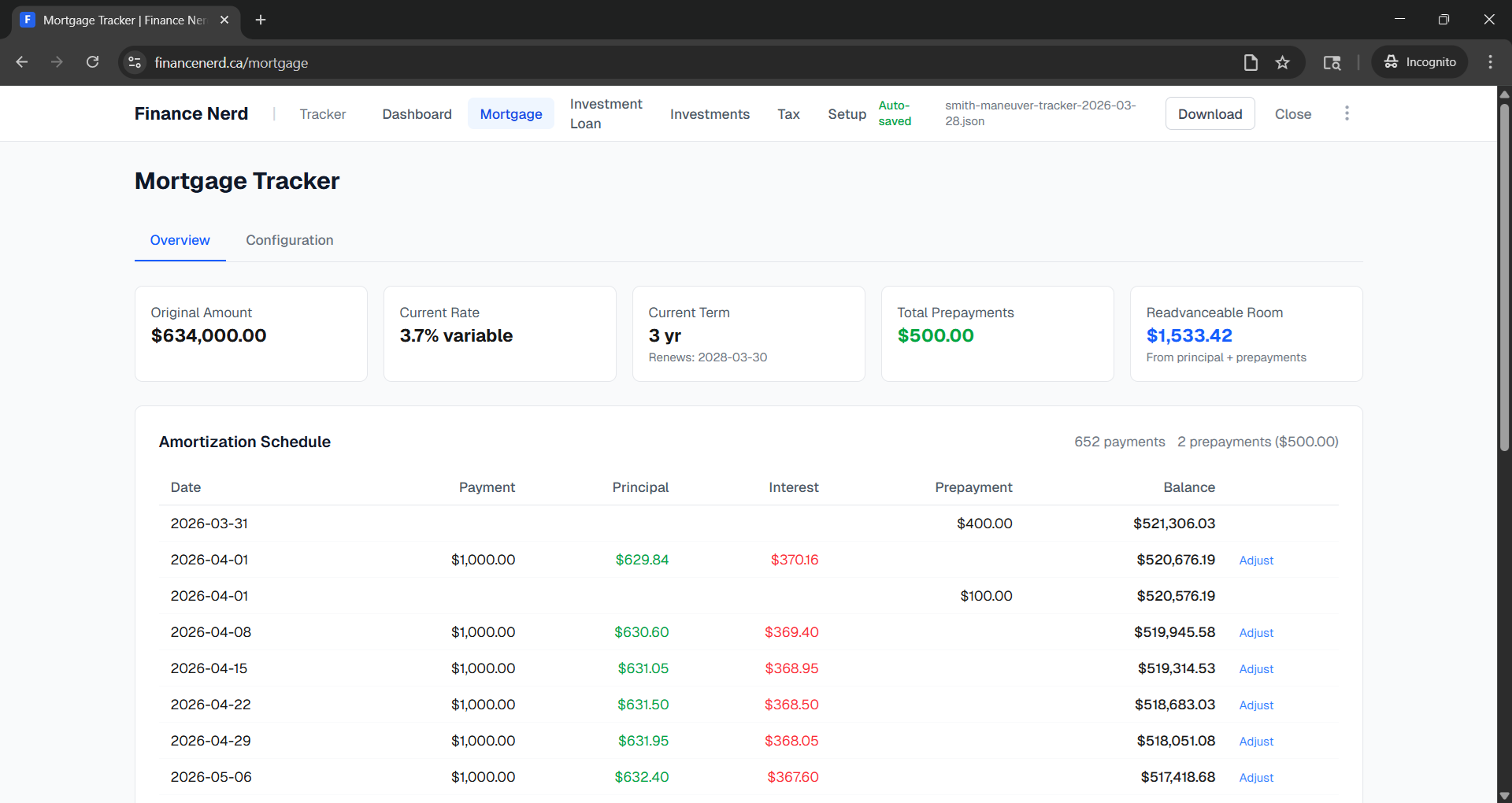
- Overview — summary cards and the full amortization schedule
- Configuration — log renewals, payment changes, rate changes, date changes, and prepayments
Amortization schedule
On the Overview tab, the schedule shows every payment from start to payoff, with a breakdown of principal versus interest for each payment. The table updates automatically when you add prepayments, renewals, or rate changes from the Configuration tab.
Logging prepayments
On the Configuration tab, record lump-sum payments against your mortgage principal. Each prepayment identifies its source:
- From Dividends — investment dividends used to prepay (part of the SM cycle)
- From Tax Refund — your annual tax refund deployed to the mortgage
- Other — any other lump-sum payment
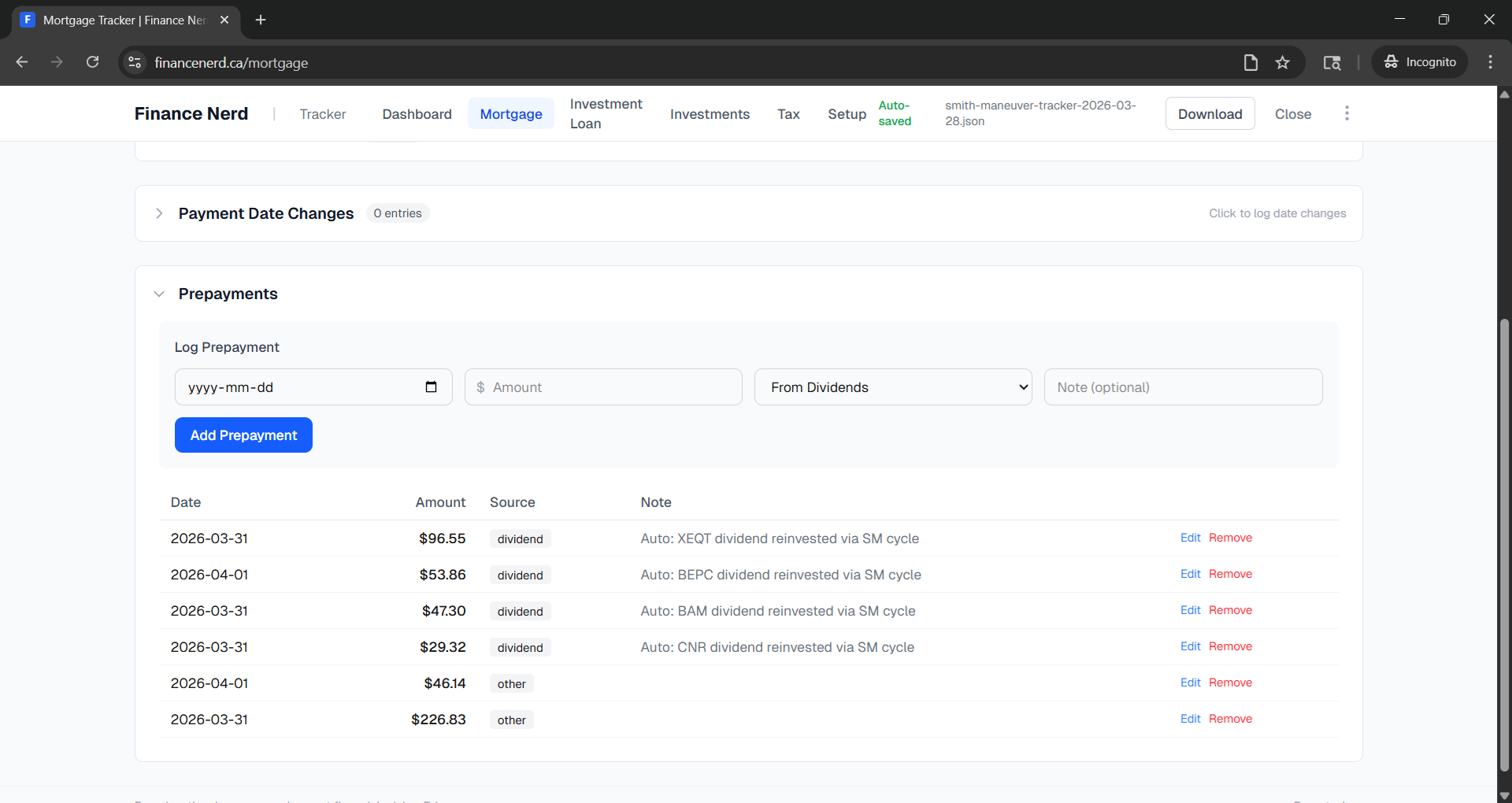
Tip: In the Smith Maneuver, dividend prepayments free up HELOC room that you borrow and reinvest. Non-dividend prepayments (tax refund, other) also free up room 1:1.
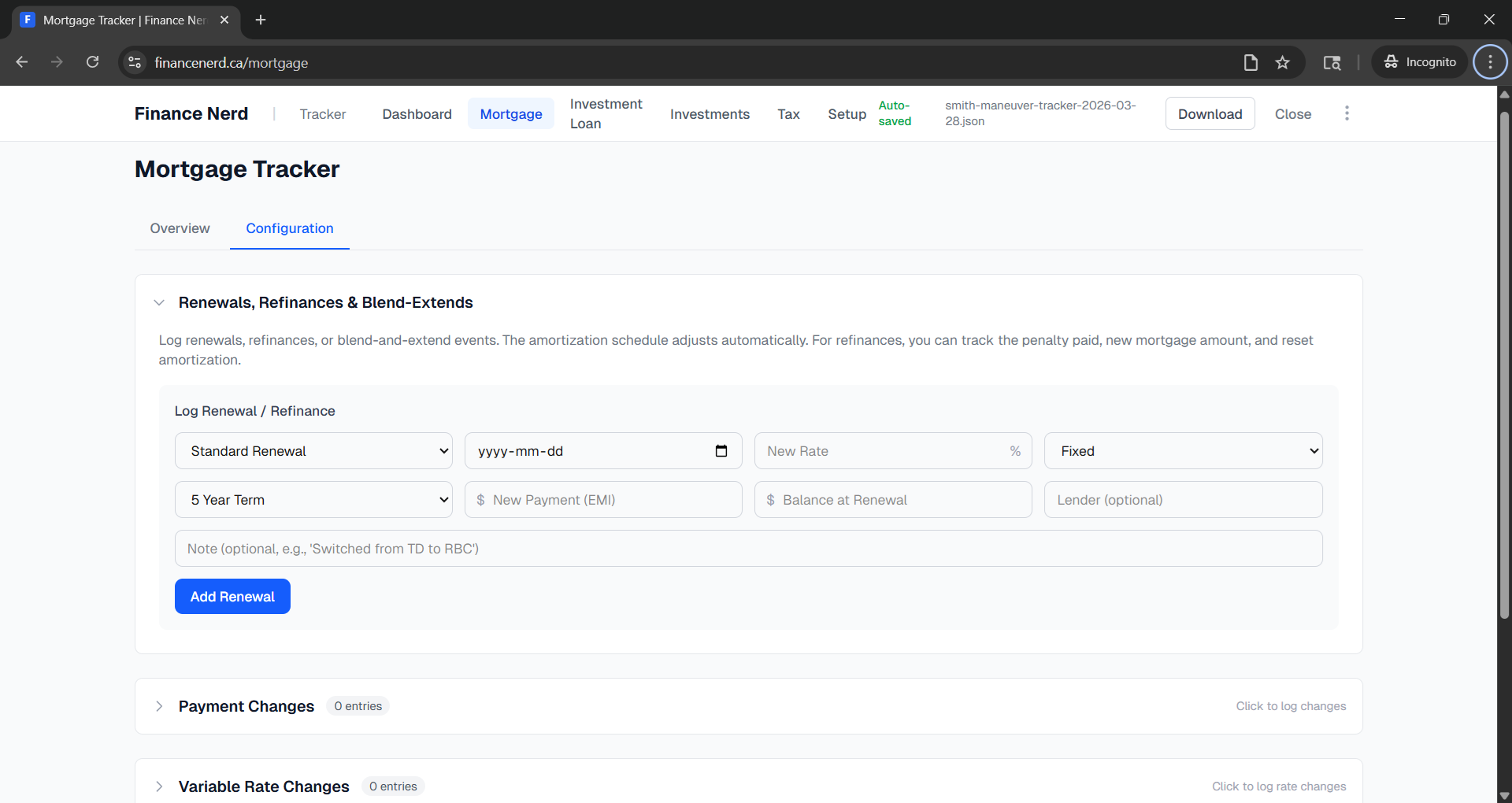
Renewals and rate changes
On the Configuration tab, log mortgage events to keep your schedule accurate:
- Renewal — new rate and term at renewal date (renew, refinance, or blend-and-extend)
- Rate change — variable rate adjustment (e.g., Bank of Canada rate change)
- Payment change — manual payment amount adjustment
- Payment date change — change your payment date mid-term
- Amortization override — reset the amortization period
4Investment Loan (HELOC) Tracker
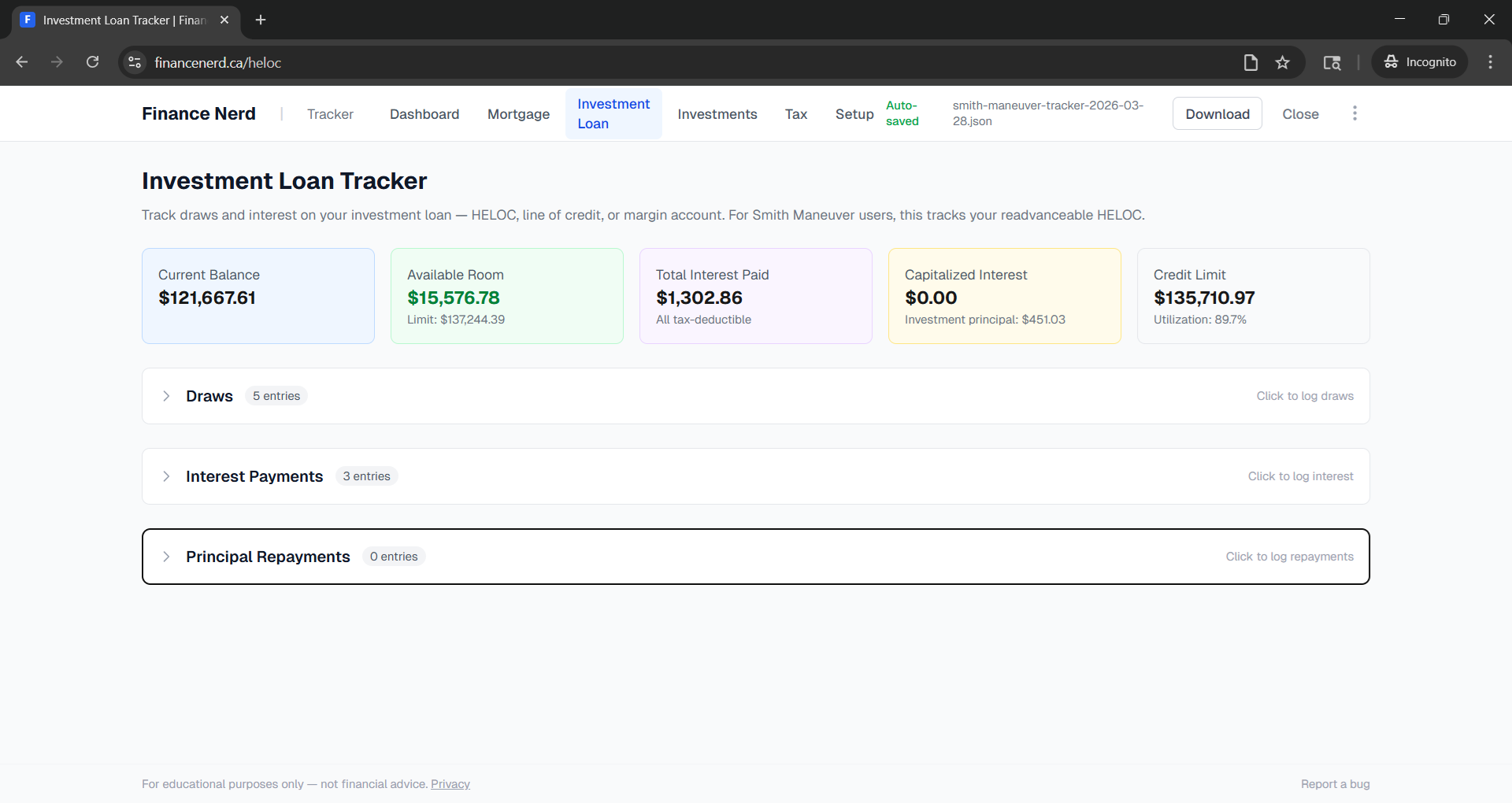
Track your HELOC draws, interest payments, and available room. This tool is designed for investment loans — HELOC, line of credit, or margin accounts used for the Smith Maneuver.
Logging draws
Record each time you borrow from your HELOC. Select the purpose:
- Investment Purchase — money borrowed to buy investments (tax-deductible interest)
- Capitalize Interest — borrowing to pay the HELOC interest itself (also deductible)
Interest payments
Log your monthly HELOC interest payments. These are tracked separately because they feed into the Tax Module as deductible interest. Mark whether you capitalized the interest (borrowed from HELOC to pay it) or paid from cash.
Available room
The available room card shows how much you can still draw from your HELOC. Room grows as you pay down your mortgage:
- Each regular mortgage payment's principal portion increases room
- Non-dividend prepayments (tax refund, other) increase room 1:1
- Dividend prepayments do not increase room — they are offset by the corresponding HELOC draw used to reinvest
Important: HELOC room depends on your readvanceable mortgage product. Check with your lender to confirm how room is calculated — some products require manual limit increases.
Repayments
If you ever pay down the HELOC principal (not interest), log it as a repayment. This reduces your outstanding balance and frees up room.
5Investment & ACB Tracker
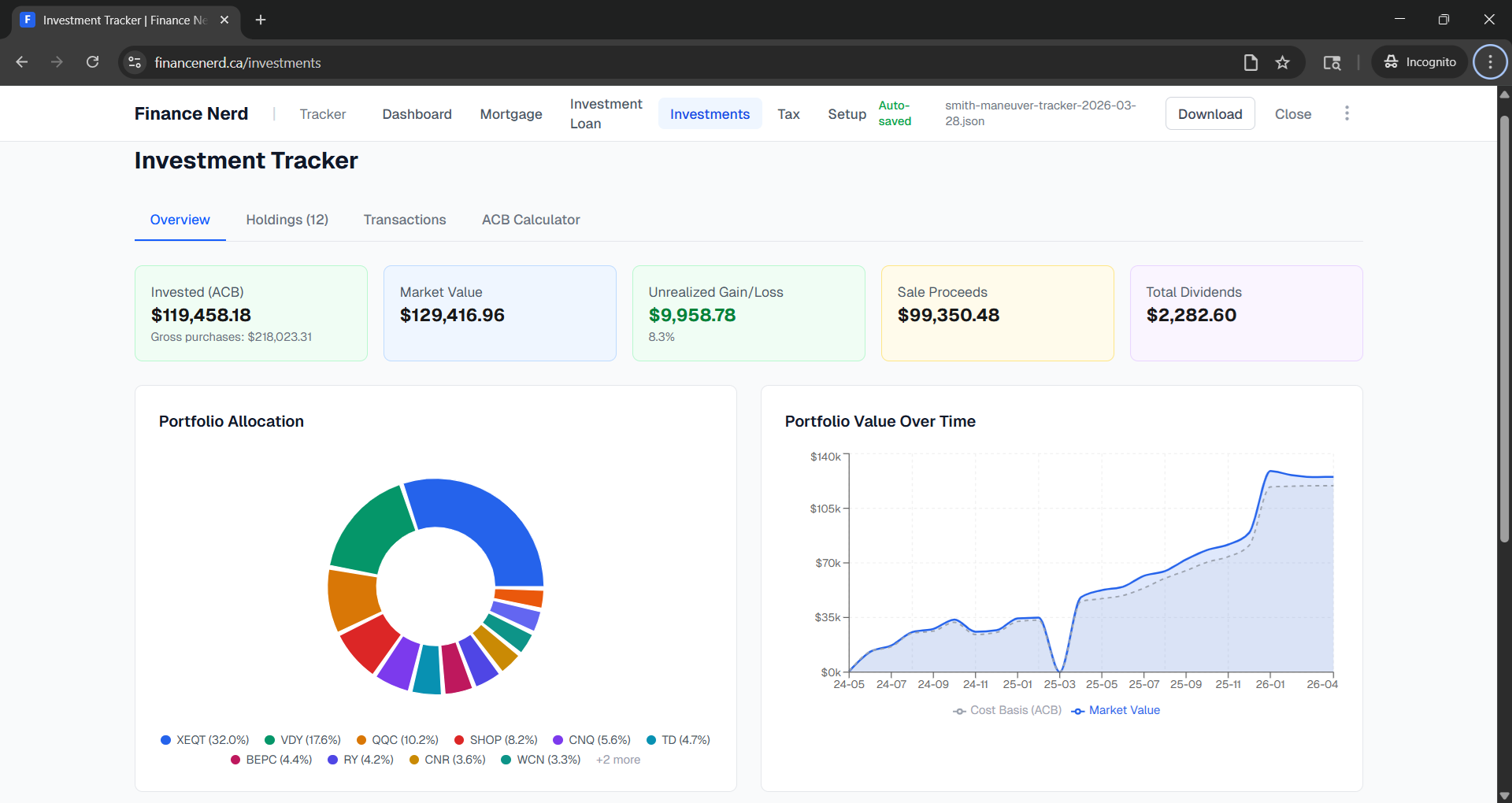
Track your non-registered investment portfolio. Log purchases, sales, and dividends to automatically calculate your Adjusted Cost Base (ACB) per the CRA's average cost method. The tracker is divided into four tabs:
- Overview — portfolio summary cards and performance charts
- Holdings — current positions with market prices
- Transactions — log purchases, sales, and dividends
- ACB — per-ticker adjusted cost base breakdown
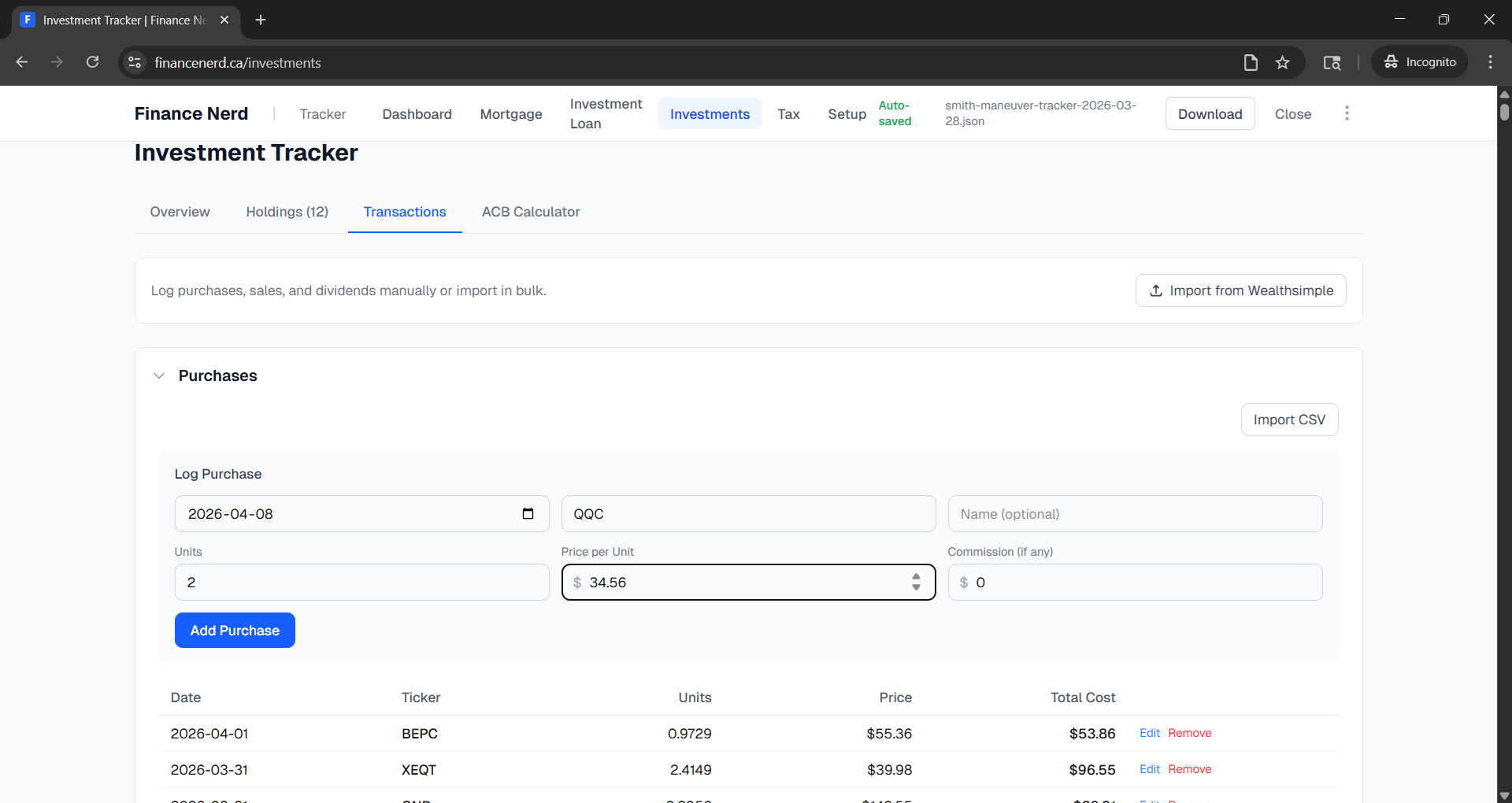
Logging purchases
- Open the Transactions tab and expand the Purchases section.
- Enter the date, ticker symbol (e.g., VDY), number of units, and price per unit.
- Add commission if applicable (Wealthsimple is commission-free).
- Click Add Purchase. The ACB section updates automatically.
Logging sales
When you sell, enter the same details. The tracker calculates your capital gain or loss based on the ACB at the time of sale.
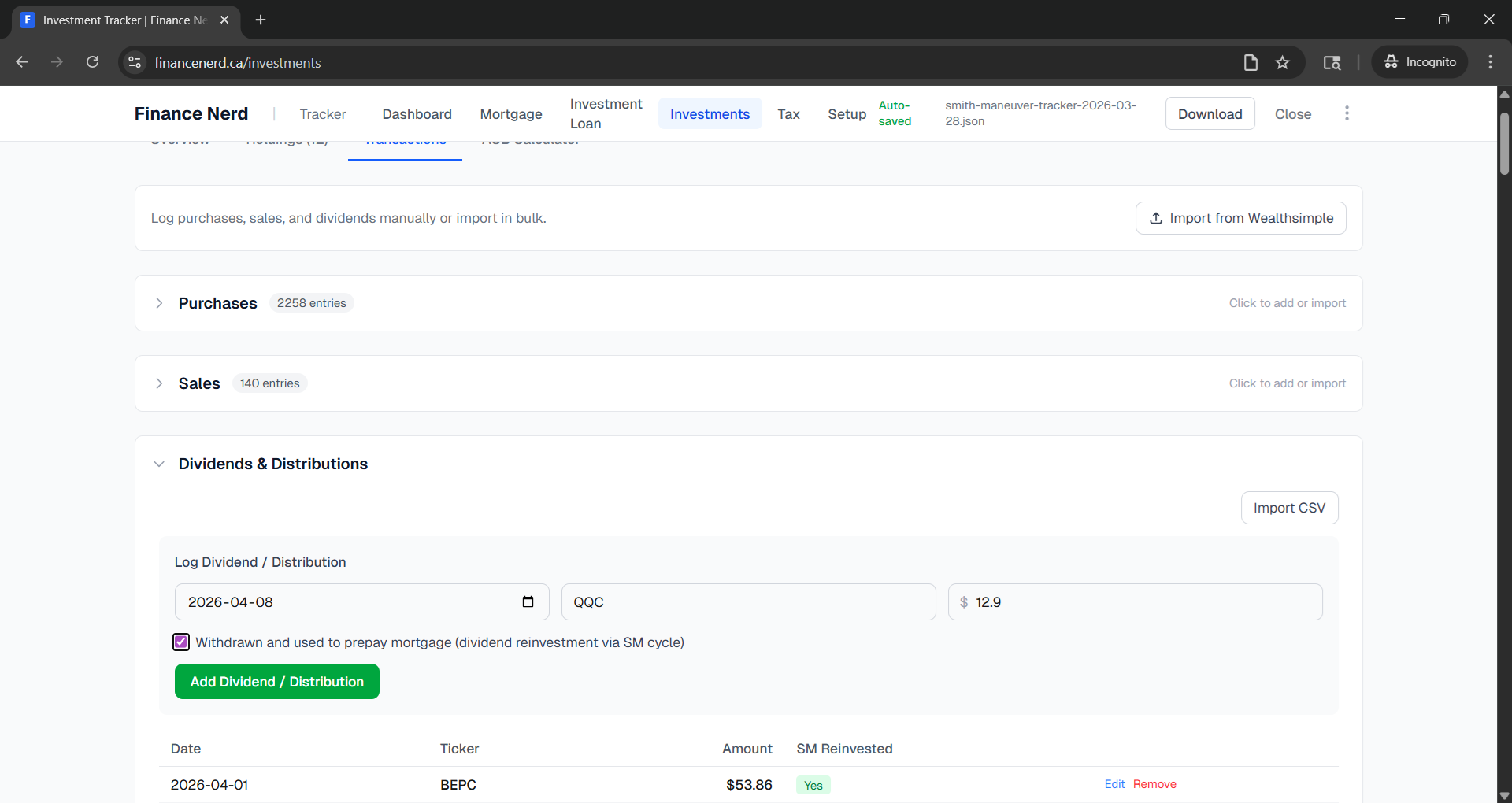
Dividends
Log each dividend or distribution you receive. Check the "Withdrawn and used to prepay mortgage" box if you deployed the dividend back into the Smith Maneuver cycle (withdrew and prepaid mortgage).
Portfolio holdings
The Holdings tab shows your current positions with units, market price, and market value.
Market prices
Market prices are fetched automatically from Yahoo Finance when you open the Investment Tracker. Canadian tickers are looked up on the TSX (e.g., VDY becomes VDY.TO), with a fallback to US exchanges for US-listed tickers like SPY or QQQ.
- Auto-fetch on load — prices update every time you open the page
- Refresh Prices — click the button in the holdings header to re-fetch the latest prices on demand
- Manual override — click any price in the table to edit it by hand (useful if Yahoo data is unavailable or incorrect)
Prices are saved with your data file, so you always have a snapshot even when offline. The date of the last price update is shown below each price.
Tip: If a ticker isn't found on Yahoo Finance (e.g., a new or delisted security), you can always click the price cell and enter it manually.
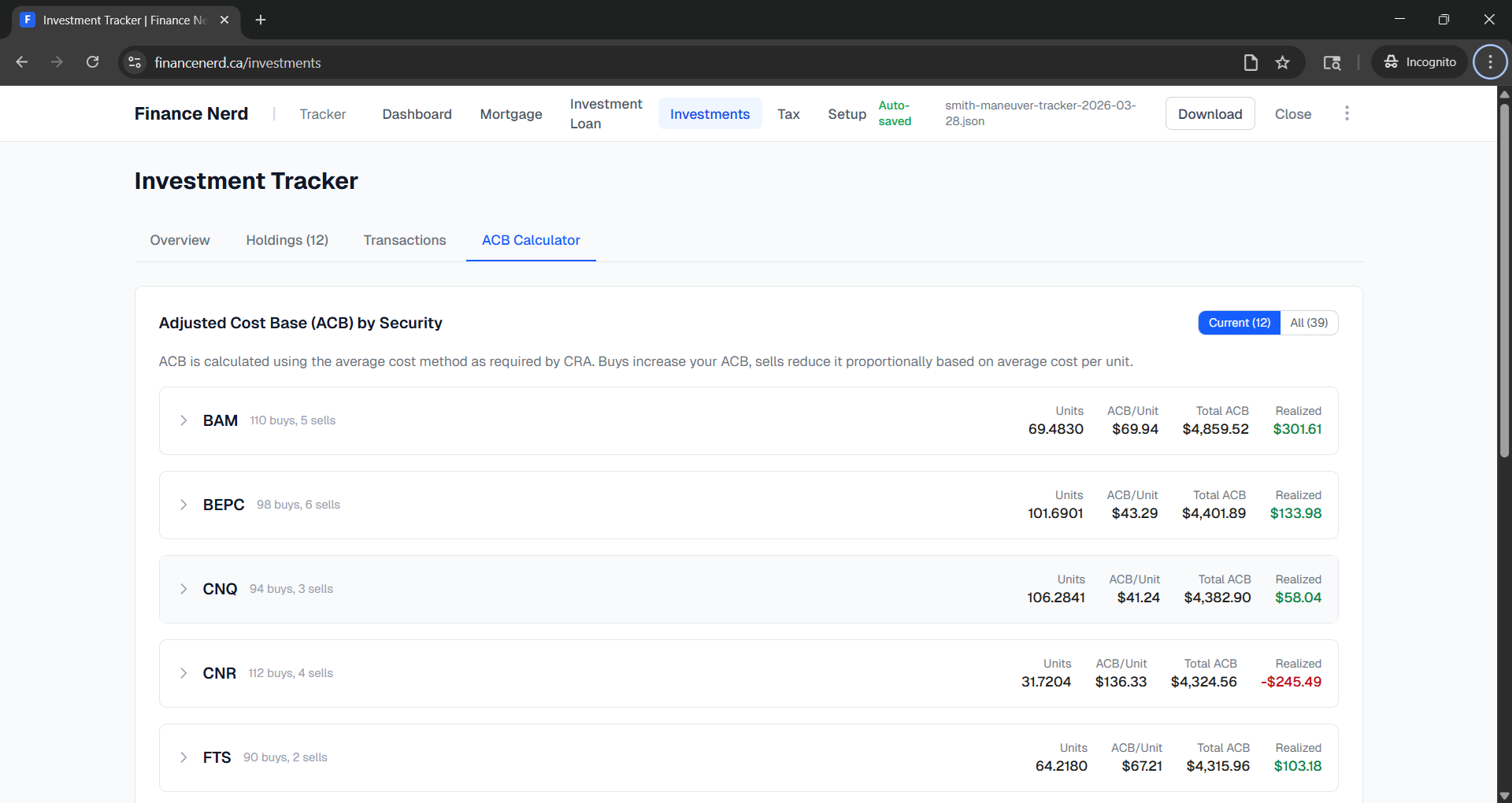
ACB records
The ACB tab shows a collapsible record for each ticker. Use the Current / All filter to toggle between active positions and fully sold tickers. The header displays:
- Ticker symbol and name
- Number of buy and sell transactions
- Current units held
- ACB per unit and total ACB
- Total realized capital gains or losses
- A "SOLD" badge for fully liquidated positions
Click any header row to expand it and see the full transaction-by-transaction ACB breakdown.
Tip: The "Invested (ACB)" card shows the adjusted cost base of your current holdings — this is your true invested principal for tax purposes, not the gross total of all purchases.
6Tax Deduction Tracker
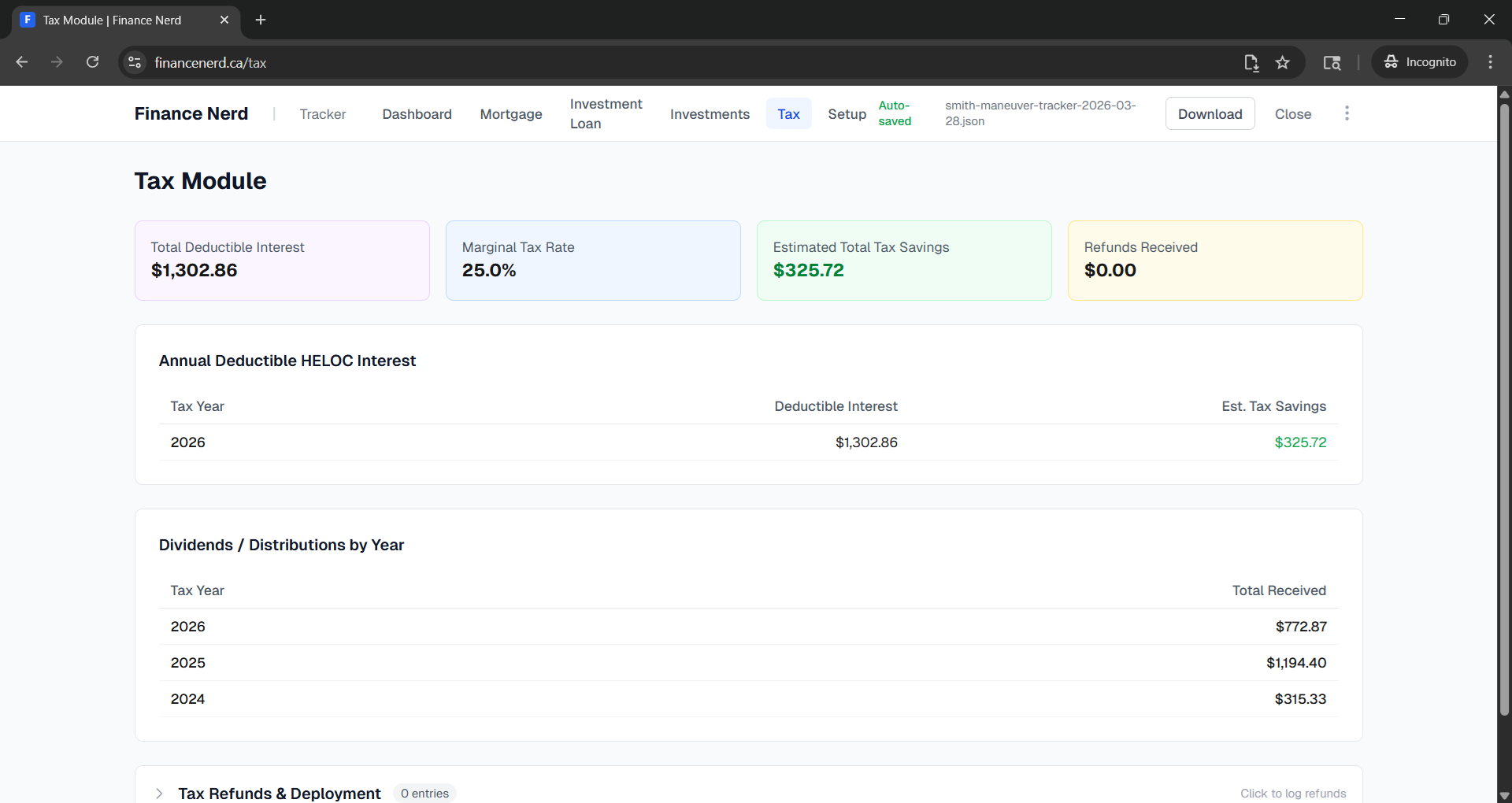
The tax module helps you track your deductible HELOC interest and estimate tax savings. It pulls interest data from the HELOC tracker automatically.
Summary cards
- Total Deductible Interest — sum of all HELOC interest payments logged
- Marginal Tax Rate — your rate from Setup (used for estimates)
- Estimated Total Tax Savings — deductible interest x marginal rate
- Refunds Received— total tax refunds you've logged
Annual breakdown
The annual table shows deductible interest and estimated tax savings per year. Use this when filing your taxes — the deductible interest is claimed on line 22100 of your Canadian tax return.
Logging tax refunds
When you receive your tax refund, log it and record how you deployed it:
- Mortgage Prepayment — frees HELOC room (recommended for SM)
- More Investments — invest directly
- HELOC Paydown — reduce HELOC balance
- Other — any other use
Tip: In the Smith Maneuver, deploying your tax refund as a mortgage prepayment accelerates the conversion of non-deductible debt to deductible debt. This is sometimes called the "Smith Maneuver guerrilla" or accelerated variant.
7Dashboard
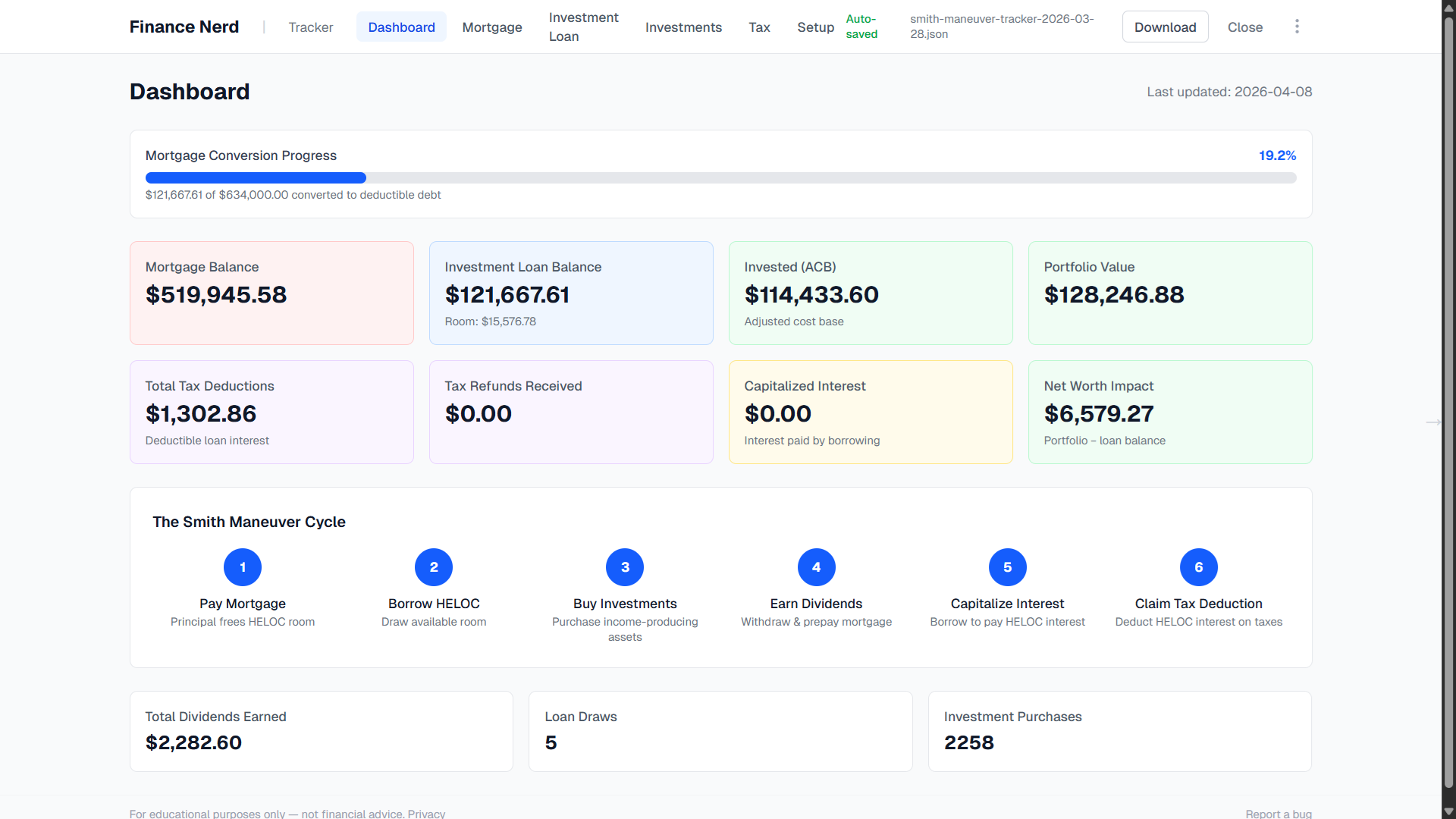
When two or more tools are enabled, the Dashboard provides a unified view of your Smith Maneuver progress. It shows:
- Mortgage balance, HELOC balance, and net debt position
- Portfolio value and conversion progress
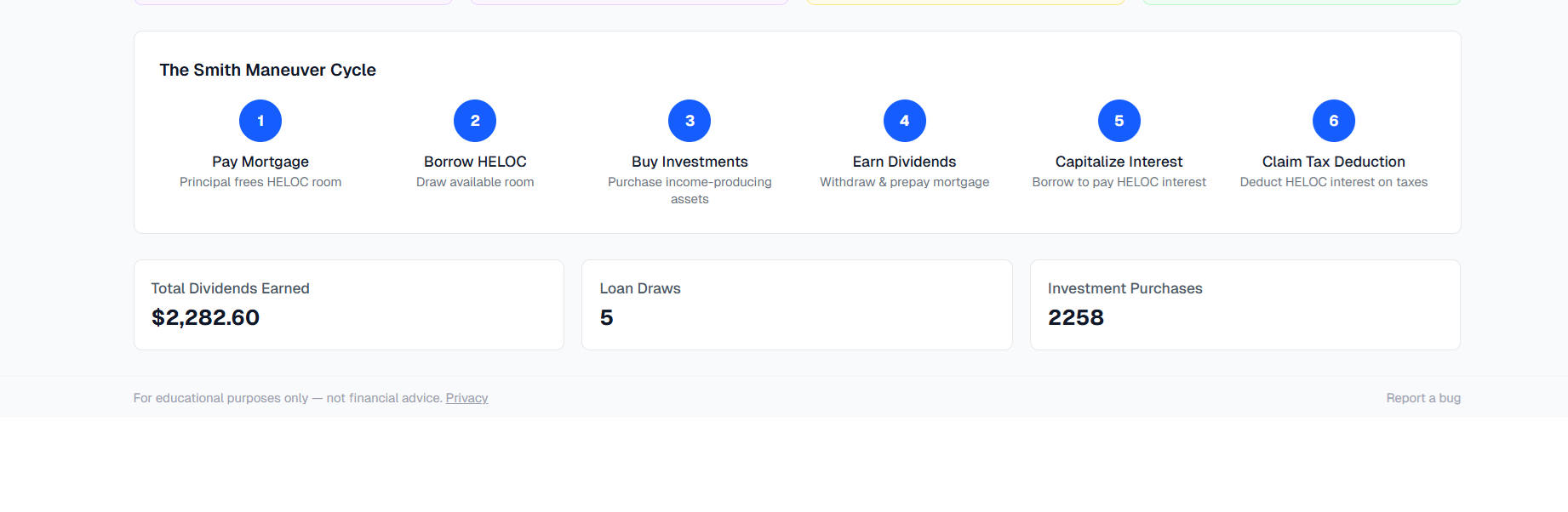
- The Smith Maneuver cycle visualizer (6-step process)
- Key metrics from each enabled tool at a glance
8Data Management
Saving your data
Your data is stored as a JSON file on your computer. There are two ways to save:
- Auto-save (Chrome/Edge) — click Save As in the top bar to link a file. Every change saves automatically.
- Manual download — click Download to save a copy at any time. Works on all browsers.
Closing and reopening
Click Close in the top bar to end your session. The app remembers the last file you used, so next time you visit, it offers to reopen it. You can also open a different file or start fresh.
CSV bulk import
Each tool section supports importing data from CSV files. Click the import button in the relevant section header to upload a CSV. The expected format is shown in the import modal.
Important: Keep a backup of your JSON file. Since data is stored locally, losing the file means losing your data. Consider keeping copies in a cloud-synced folder (e.g., OneDrive, Google Drive).
9Wealthsimple CSV Import
If you use Wealthsimple, you can bulk-import your transaction history directly from their monthly statement CSV files.
How to export from Wealthsimple
- Log in to Wealthsimple and go to your account activity.
- Download your monthly statements as CSV files.
- Save them to a folder on your computer.
Importing into the tracker
- Open the Investment Tracker page.
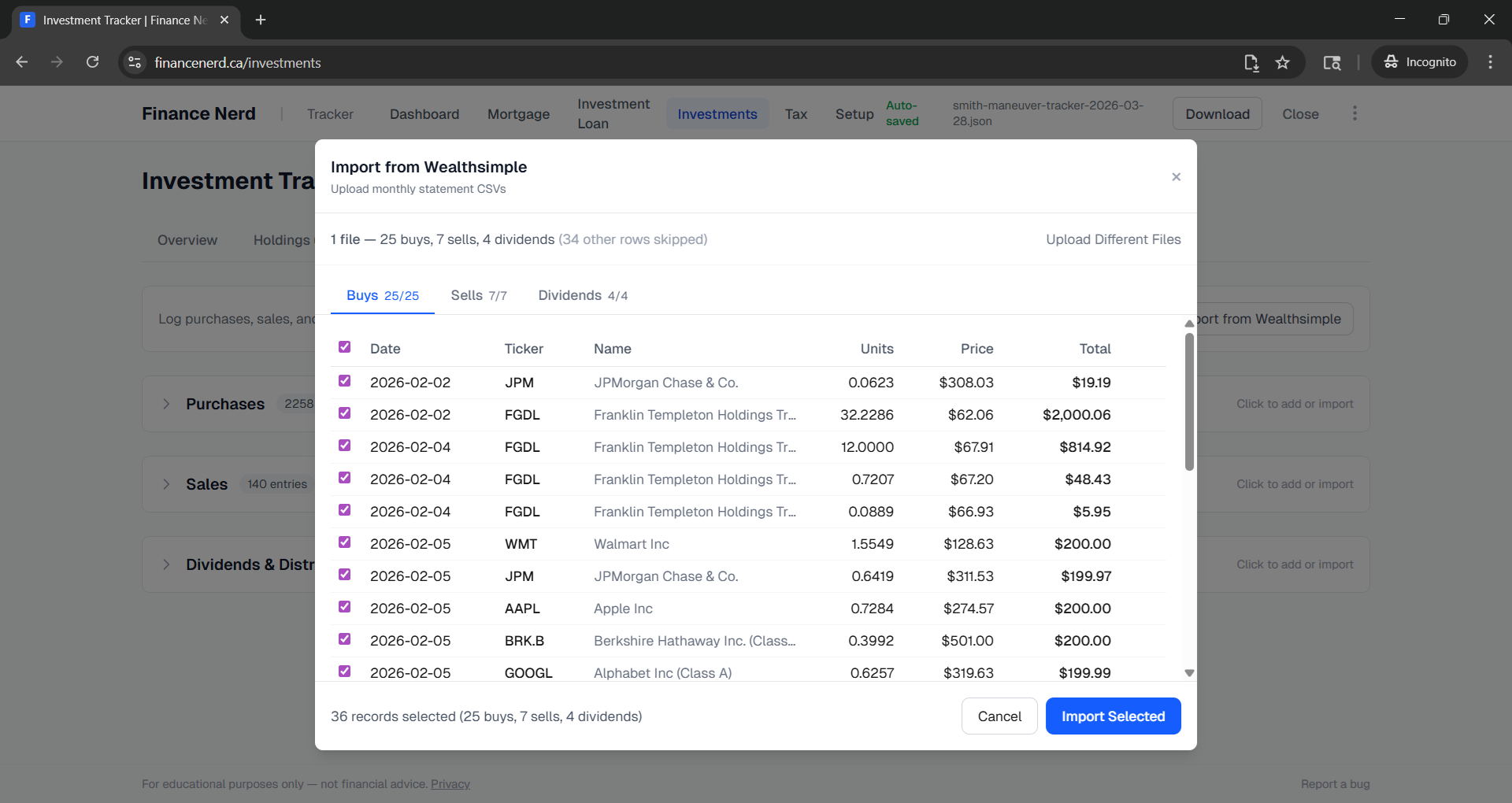
- Switch to the Transactions tab and click Import from Wealthsimple.
- Select one or more CSV files (you can select multiple at once).
- The parser extracts all BUY, SELL, and DIVIDEND transactions automatically.
- Review the preview — transactions are grouped into tabs (Buys / Sells / Dividends).
- Duplicates (transactions that already exist in your data) are highlighted in amber and deselected by default.
- Uncheck any transactions you don't want to import, then click Import Selected.
Tip: You can import overlapping months without worrying about duplicates — the parser detects existing transactions and flags them. Just leave duplicates unchecked and import the new ones.
10Smith Maneuver Workflow
Here is the recommended monthly workflow for tracking the Smith Maneuver end-to-end using all four tools:
Monthly cycle
After your mortgage payment
Your amortization schedule shows the principal portion. This is how much new HELOC room you have.
Draw from HELOC
In the HELOC tracker, log a draw for the freed-up amount. Purpose: Investment Purchase.
Buy investments
In the Investment tracker, log the purchase. The ACB updates automatically.
Log HELOC interest
Record your monthly HELOC interest payment. If you capitalize it (borrow from HELOC to pay HELOC interest), log both the interest payment and a new draw.
When dividends arrive
Log the dividend in the Investment tracker (check "reinvested via mortgage"). Withdraw the dividend, prepay the mortgage, draw the new HELOC room, and buy again.
At tax time
The Tax Module shows your deductible interest for the year. Claim it on line 22100. When you get your refund, log it and deploy it as a mortgage prepayment to accelerate the cycle.
Need help?
If you find a bug or have a feature request, please email us at info@financenerd.ca. For questions about the Smith Maneuver strategy itself, consult a qualified financial advisor.